Showing posts with label Cloud. Show all posts

18 January 2016

Silicon Cognition

2016: Silicon Cognition


Several years ago I flogged the term “Cloud-Based Episodic Parallel Processing” and tossed c-bepp.org onto the Internet with a concise manifesto of a vision: a cloud API for applications running on PCs and other puny computers to be called when massive computation (or computation on massive amounts of data) is required.

My focus was applications like personal medicine, where a patient’s symptoms and genomic information (for example, the DNA sequence of their tumor) could be correlated against a vast database of similar sufferers, and the best course of therapy for the particular patient selected based on outcomes amassed over time and the spectrum of therapies that had been tried.

I likened the process to a hybrid car, which carries a modest gas engine of barely sufficient power for light-demand usage but also an electric drive to add bursts of power in high-demand situations.

C-BEPP received limited interest at the time— some interesting conversations, some expressions of interest, a few amens— but ultimately it didn’t gel.  Wasn’t actionable.  The necessary software constructs seemed unapproachable.

But tonight it struck me: in the end, it actually did gel in a sense— with a twist.  Driving home, my watch guided me along the roadways, gently tapping me when turns were necessary: tap, tap, tap for right; tap-tap, tap-tap, tap-tap for left.  It did this by harnessing a sort of episodic cloud-based processing: Here was the puniest of personal computers, drawing intelligence from a distant cauldron of immense compute power.

The twist is that there is an intermediary I had not foreseen: the smartphone.  Powerful computers in their own right by any classical measure, these always-connected, sensor-festooned, multi-networked wonders provide valuable preprocessing and situational information to the distant brain based in the cloud.  My phone interacted with me via the watch, and it corresponded with the cloud-brain, serving as interlocutor and conductor of the orchestra of data to and from my wrist.

In return, the cloud-brain gained insight from observing me: knots of traffic I encountered, my speed, diversions and alternate routes I chose to take, and so on.  Perhaps even biometric information from my watch caught its interest, since that was available too.  Who knows, if I wrenched the wheel sharply, it might even have noted an obstacle in the road.

My eyes were its.

Silicon ganglions

Throughout history, successful innovations have often paralleled biological systems.  Airplanes possess similarities to birds; submarines to fish.  Advanced coatings draw heavily from nanostructures on plant-leaves, unwettable by even the heaviest rain.  Camera imaging chips draw from the design of the retina, and on and on.  It's called biomimetics.

So here we see an emerging compute paradigm similar to the biological structure known as a ganglion: a mini-brain, a peripheral intelligence interposed between transducers in the field and central processors in the cloud.

My phone's role in my evening commute struck me.  In 2016, it is the ganglion in a diffused intelligence in which I am a participant, beneficiary, transducer… and sensor.

Silicon Intelligence

Looking back at 2015, perhaps the most remarkable thing I read was a Google Research blog post entitled “Inceptionism: Going Deeper into Neural Networks” (http://googleresearch.blogspot.co.uk/2015/06/inceptionism-going-deeper-into-neural.html).

This described recent work in correlative recognition using the specialized compute structure called a neural network.  These systems learn by observing large data sets.  Their predictive capability self-adjusts over time via observation and feedback (http://www.dspguide.com/ch26/4.htm).

And, when idle, they dream.  That Google Research blog post presented otherworldly phantasms imagined by the neural networks when ruminating over image databases.

Haunting stuff, not least because the phantasms seem so brilliantly dream-like.  The stuff of a dawning intelligence.  The stuff of nightmares.

What recognitions, then, might such an intelligence draw if fed something close to the sum of human thought and behavior?  In 2016, I think we will begin to find out, because portals to that exist today.  They are specialized in various ways: consider the databases of a Google, an Amazon, an NSA.  Immense insights await the hungry brain capable of observing it all.

Silicon Consciousness 

There’s more.  The difference between intelligence and consciousness is simply being-in-the-now.  Observing and correlating databased truth is one thing, and it allows inferences and recognitions to be drawn.  But observing and correlating the world as it happens is quite another thing, and this is the natural agenda of Internet of Things as it unfolds, whether its participants are aware of it or not.  This is the stuff of consciousness, not just intelligence.

And, in 2016, it is here.

Silicon Precognition

Philip K. Dick’s 1956 short story, “The Minority Report” (later turned into an engaging movie), centered on mutants capable of foreseeing crime.  In 2016 we need no mutants: we have the germ of silicon consciousness animated by silicon intelligence, leavened by a critical mass of human thought and behavior, and illuminated by a real-time sensorial feed from exponentiating millions of sensor-equipped minions like me, just going about our days.  Given such a vast and dense sense of history and now present, the leap to foreseeing the future is a minor one.

And an inevitable one.

Consider again who those big-data players are.

Consider again the real value of big data in 2016.

Biomimetics, writ large

Throughout history, successful innovations have often paralleled biological systems.  And so the beehive enjoys a collective consciousness, animated and leavened and illuminated by its throngs of worker bees as they go about their day.  Occasionally one will find a promising flower-patch and will convey news of the bounty back to the hive by pheromone and even through coded dance.

And so I arrived home, finding my family freshly returned from a wine-tasting expedition in the hills behind us.  My day’s meetings had gone well; the Pinot Noir they brought home is truly excellent.  The brain in the cloud observes my copacetic pulse-rate, the relaxed sway of my motions, the contemplative tap-tap of my keyboard.

What is my coded dance?


This essay was originally posted on Patricia Seybold's customers.com site.

06 September 2014

How to easily share Keynote presentations and other iWork documents with colleagues

I do a ton of presenting and have found Keynote on my iPad to be a tremendous upgrade over PowerPoint.

  • There's no waiting for boot-up, 
  • Transitions are beautifully fluid, 
  • Animations and videos are 100% reliable and always smooth (and never a black box on the screen where a video is supposed to be!), 
  • Projector compatibility is untouchable, and
  • Courtesy Geekwire's excellent article, "Undeterred
    by Office for iPad, Apple updates iWork suite"
  • Integrated presentation tools such as virtual "crayons" and "laser pointers" mean you never have to face away from your audience.  

In a competitive environment, Keynote is a valuable arrow to have in your quiver.  Plus, the software runs identically on my iPhone, meaning I can always have your presentations in my pocket.  Being able to whip out a compelling, good-looking presentation at a moment's notice conveys a valuable message of preparedness and professionalism.  That is not of merely academic merit-- it has meant actual, substantial sales for me.

Keynote presentations also transport reliably.  There are none of the missing-font and misplaced-video issues that have afflicted PowerPoint for two decades.  With Keynote, all media and other resources are bundled together in an amalgamated file format.

However, the locked-down nature of iOS presents obstacles to sharing Keynote presentations with colleagues.  You can store a presentation in iCloud and share a link to that, but if the presentation is large, chances are excellent that the download into the recipient's device will break at some point.  Perhaps that will improve over time.

iOS also pioneered a concept of hiding the device's file system, having applications own and manage their own files instead.  There is nothing like a Windows Explorer or Finder in iOS.  You open Keynote; your Keynote files are right there.

A mysterious option

First, let's agree that using iTunes to convey files from device A to device B is not acceptable in this day and age.  Next, let's stipulate that iCloud's current file-conveyance capabilities aren't yet industrial-class, especially with larger Keynote presentations.

But there's a third mechanism: the mysterious WebDAV option you may have noticed in Keynote and other iOS apps, both on iPad and iPhone.

Web Distributed Authoring and Versioning is a standards-based approach for making the web a readable and writeable medium.  It provides a web-centric, firewall-friendly way of accessing and storing files across the Internet.  Sounds good... but, it's not clear what even the first step should be for leveraging this technology on iOS.

First, fond as I am of Dropbox, it does not support WebDAV, and per their FAQs they have no plans to do so.  So it's not a solution here.  There are third-party services such as DropDAV that you can subscribe-to that provide WebDAV compatibility for Dropbox, but for my occasional usage the annual cost seemed unreasonable, and some users would be justifiably uncomfortable with allowing a third-party service to have access to their Dropbox'd files.

A few competing cloud storage providers provide rudimentary WebDAV compatibility, but flaws abound.  Box.net, for example, lets you upload and download using WebDAV-- but with a catch: At least for the pricing tiers I explored, you have to give your account username and password to anyone you want to be able to access any file.  That's such an obvious non-starter that it's almost mind-blowing.  Even more mind-blowing is how universal it seems to be; I spent hours exploring various services and this sort of idiocy is depressingly common.  Shame on you, Internet.

An exceptional exception

Finally, an exception popped up.  There is a Swiss online storage company, MyDrive.ch, which offers a responsive, secure and well-priced service that supports WebDAV beautifully and has optional guest accounts.  So, you can distribute the guest-account credentials and limit their access to specific folders and permissions.  Perfect!

MyDrive even offers a free tier, with one guest account and 100MB of storage.  That might be enough for many purposes, but I needed more storage than that.  So I upgraded to their "MyDrive Pro" with over 3GB of storage for the princely sum of approximately $10 a year (and they gave me a bonus month on top of that).  Additional guest accounts are $0.50 a month.

They have a free iOS app too, but that doesn't get around the problem that only Keynote can access your presentations on your iDevice.  For that, we'll use WebDAV:

How to use MyDrive.ch's WebDAV feature to share your Keynote presentations

1) Set up your MyDrive.ch account in a browser on your computer or iPad.  You'll receive an authentication email immediately; look for this, and click the activation link it contains.  All set!

2) In the browser, log in and establish any folder structure you want.  I suggest creating a dedicated folder for uploads from your guest(s) if that's something you might want to enable.  MyDrive.ch enforces a rule that only the master account can write to the root folder; by default, guests can access files in the root folder for read-access only.

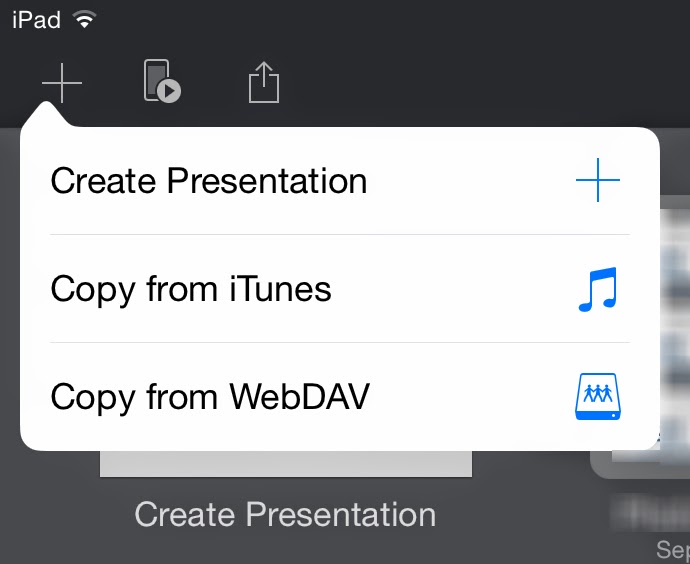
3) Switch to Keynote.  On iOS, in order to log into your WebDAV-supporting service to upload a presentation, you must first go through the initial steps of downloading something even if there's nothing there yet to download.  So to start: In Keynote's screen that presents your collection of presentations, click the "+" sign at the upper left, and select Copy from WebDAV.  A login screen will appear.

4) For the URL, type https://webdav.mydrive.ch/  ...you can add a folder-name to that if you wish.  (All this is case-sensitive.)  Type in the user name you just established, or the guest name in the form of GuestName@MainUserName. Then, fill in the password for the user you just entered. 

5) Click "Sign In."  Your file-list, if any, will appear.  Clicking on any presentation will download it to your iDevice's Keynote store.  (Keynote files will show up with a .zip extension-- ignore that.)

6) To upload a presentation to share with others, cancel out of the login screen and open the presentation you want to upload.  Click the Share button, then Send a Copy.) Select WebDAV.  From the upload formats you're offered, you'll probably want to choose Keynote.  Your iDevice will click and whirr for a moment, and then the file will be uploaded.  

Done!

Steps 4 & 5 are all your colleagues need to access your presentations: they'd just click the "+" button at the top left of their Keynote presentations listing, Copy from WebDAV, fill in the URL and guest username and password, et voila.

A few caveats

MyDrive supports SSL encryption, as you may have noticed from the https URLs in these examples.  However, if you want your browser-based connection encrypted, you must checkmark the "Use SSL encryption" option at the login screen, even if you logged in via https://mydrive.ch.  I would prefer an "always use SSL" option be instituted in the account settings ...and certainly if you log in via an SSL-encrypted page, your connection should stay SSL-encrypted.  From a usability standpoint, this is a minor but potentially important behavior to be aware-of. UPDATE: The responsive MyDrive folks have responded to this post by changing to an always-on SSL policy. Great!

If you wish to allow your colleagues to upload presentations without giving away your master account credentials:
  • Create a folder to receive their uploads:  Log into your MyDrive.ch account using a browser on your computer or iPad.  Add the folder via the "Create Folder" button.
  • Create a guest account for your colleagues to use and set its permissions to allow uploads:  In the Settings menu, select the Guests tab.  Create the guest account there, assigning full access to the guest.  (Currently, MyDrive's upload access setting doesn't actually enable uploading from within iWork applications via WebDAV.  I have brought this bug to MyDrive.ch's attention.UPDATE: Per MyDrive's engineers, this behavior is probably due to Keynote's usage of temporary scratch files.)  Don't worry, a guest account with "full access" can't delete files or folders at the root level.  If you wish to restrict access to specific folders for specific guest accounts, use a browser to go to your main file listing, and click the permissions button to the right of the folder.  


MyDrive.ch offers other goodies too.  For example, you can mount your MyDrive store as a network drive if your operating system supports such things (and all versions of OS X have done so: In Finder's Go menu, select Connect to Server and use the URL https://webdav.mydrive.ch ...authenticating with your username and password.)

Recommended.  My colleagues and I have already found this to be very useful for distributing some of my Greatest Hits presentations... and, likewise, getting their own to me, directly from their iPads.


14 December 2013

Five essential tools for maximizing your digital privacy

I don't quote my own blog posts very often, but a recent article in Slate, "Facebook wants to know why you didn’t publish that status update you started writing," spotlights an issue that caught my attention in the earliest hours of the Snowden revelations.  It's prompted some discussions and then some advice that's worth a post of its own, so here goes.

Some of Snowden's first bombshells included disclosures that US and allied intel agents could monitor users' logins and other activity on the Internet in real time even for encrypted services.  In the aftermath of these leaks, I commented,
The "As-You-Type" claim is a special concern
Webmail services help prevent loss of your work in the event of a disconnect or crash by frequently storing your draft on their server as you compose it.  This blog post, for example, has been saved to Blogger's server automatically many dozens of times as I've worked on it.  Had I typed something incendiary and intemperate about some politician or bureaucrat, that would have been stored as well-- and potentially monitored and inspected if my phrasing (or integrated profile) contained certain keywords or triggers.  This means cloud-based services of a wide variety have the capability of capturing and potentially monitoring your evolving thoughts and phrasing, even if you think better of them before committing the "Send" or "Publish" button.  So, it's bad enough that what you email and say is monitor-able... what you think is also.
So the automatic server-saving of your drafts not only provides crash-proofness but  allows the service you’re using (and any eavesdroppers, hm?) to observe your thought processes and note any evanescent notions that you may have reconsidered and deleted.  Creepy much?

Five essential tools for maximizing privacy

In response to that article, a correspondent asks if his privacy is more assured if he does his drafting in a word-processor on his computer instead.

Well, as should be clear by now, if your drafts are on some server somewhere, they can in theory be accessed and reviewed by corporate or governmental authorities.  It's happened: just ask David Petraeus.  So you might expect that if your drafting and deletions are entirely constrained to files on your local disk then they would remain private.  Unfortunately it's not quite as simple as that in today's connected world.

Basically: your drafts are private if they're on your computer and not benefiting from any sort of cloud storage or backup service, and assuming no entity has installed a key logger or other monitoring tool on your computer, and that no one physically or remotely accesses your machine while your drafts are on it in some accessible form ...which might not be at all obvious.

That last point is an interesting one.  I've lost the citation but recall how some guy was convicted for some terror-related crime in the past couple years based in part on evidence collected from scratch files scattered on his disk by his word processor.  Finding this evidence was possible because he had not encrypted his hard disk, allowing easy forensic analysis of his activities.  The only defense against this sort of forensic analysis (whether by government or other entity) is to encrypt your disk with a strong password; in the US at least there are legal obstacles to forcing you to give your password up even if accused of a crime.  (Biometric authentication is not constitutionally protected.  So if Fifth Amendment protections against self-incrimination are important in your situation, know that anything protected by something like a fingerprint sensor can be opened by the authorities if you're accused of a crime.)

So there are nuances to what one might expect to be a simple answer.  Meanwhile, the only real news in the Slate article referenced above is that stuff you delete from a hosted draft may still have been noted and logged.  And frankly, that shouldn't be news to alert readers by now.

The first essential tool: personal encryption

Let's face it, cloud services are popular because they're useful.  For example, I routinely do my work in files stored in my Dropbox folder.  The benefit to me is that I can access them from anywhere using any of my devices or even a browser on someone else's machine.  This has been very beneficial to me, plus Dropbox keeps versioned backups of my files, so if I whoops something it's easy to return to a previous version.  Dropbox is a wonderful, reliable, non-creepy, secure service I recommend highly and for which I have documented ways to virtually assure the privacy of your files.  (Newer, self-hosted services like OwnCloud or Bittorrent Sync provide capability similar to Dropbox's without third-party involvement, leaving only the transport channel and physical or remote access to one's machines as potential vulnerabilities.)

Of course, were I writing some sort of radical manifesto, keeping my drafts in my Dropbox might not be the best approach for staying under the radar.  Snowden's whistleblowing tells us that agencies of governments friendly and otherwise (and, who knows, some well-resourced corporations or other entities) now regard ordinary encryption as opaque as Saran Wrap.  Though I'm not in the habit of writing manifestos or possessing other dodgy files, there are some aspects of my finances and work where confidentiality is important, and in those situations I perform my own duplicative private encryption, which is less likely to be easily cracked.

So, the first tools to acquire and learn to use are personal encryption utilities.  For those lucky enough to be using a Mac, OS X's built-in ability to create bandwidth-friendly encrypted sparsebundle disk images is a boon.  A helpful reader points out EncFS as another effective, cross-platform tool for bandwidth-conserving file encryption.  For any platform, TrueCrypt provides good capabilities for encrypting files and creating encrypted disk images, although it lacks the sparsebundle capability that's so beneficial for online storage situations.

For me, the benefits of using online services the way I use them outweighs the risks, which I've reduced and mitigated through tools such as these.  Similarly, I use gmail for some of my e-correspondence.  It's a great service.  I recognize that I, the user, am the product, and the service markets me to its customers as a digital dossier collected from my activities, connections, communications and (per the Slate article) thoughts.  Of course, anyone who writes to me c/o my gmail account gets databased, too... an example of how our personal privacy decisions have implications extending beyond the penumbra of our individuality.

The second essential tool: Whole-disk encryption, and password-enable your device

As previously related, I once caught a coworker just as he started poking around on my laptop after he thought I'd left the office.  He was an odd sort of duck, and my immediate thought was that he intended to put something problematic on my machine.  It happens.  In fact, it's the sort of threat that's far more likely than NSA targeting most readers here.

And it's readily addressable: turn on your device's password capabilities, including a screen-saver password or other lock-code that activates when your machine is unattended.  This goes for your smartphone as well as your computer.

But this is just an inconvenience to a determined attacker.  Devices get lost or stolen all the time, and Evil Hotel Maids in some countries can and do access computers left in visitors' rooms to perform espionage on behalf of some state or industrial entity.  The best defense against this is a good whole-disk encryption scheme.  For example, the Mac's FileVault 2 option has been a standard feature of OS X for several generations now, and it is highly effective and efficient.  If your machine's manufacturer offers something of the sort, turn it on.  If not, read some reviews and buy a utility that will do the job.

iPhones and iPads automatically encrypt their file systems when a passcode is turned on-- brilliant.  So, do that.  Recent versions of Android offer something similar.

The third essential tool: Email encryption

Ed Snowden insisted on PGP encryption of email communications, and that's a remarkable endorsement of this free and effective technology.  Its developer, Phil Zimmermann, nearly went to prison for developing it, and then-Sen. Joe Biden made two attempts to sneak wording criminalizing personal encryption into totally unrelated legislation.  It's instructive to ponder why tools that allow individuals to maximize their own privacy have been so controversial for so long... this occurred more than a decade before 9/11.

Today, much of what we do on the Internet is encrypted in transit from your computer to at least the first node in the chain to whatever service you're using.  But that only means eavesdropping is blocked to those lacking the keys, and only while in transit, and only for that hop.  For example, Gmail is very securely handled between your browser and the Gmail servers.  Once there, your emails are stored in plain text.  Worse:
Under the Electronic Communications Privacy Act (ECPA) of 1986, police only need a subpoena, issued without a judge's approval, to read emails that have been opened or that are more than 180 days old.
Meanwhile, the repeated compromises of the public Certificate Authorities suggests any encryption based on CA-managed keys may be vulnerable.

The solution is to heed Snowden's advice and manage your own email encryption for those situations when postcard-class privacy is inadequate.

Setting up PGP takes a little effort and is, unfortunately, still a bit of a geek-fest, but it's worth the effort.  Mac users have it especially easy via the marvelous GPGTools.org toolkit, which integrates brilliantly with Mac's Mail.app.  GPG4Win offers something similar for Windows users.  And all participants in a conversation must have established and exchanged their public keys.  Assuming the participants are trustworthy and careful, this ensures that private discussions remain private.

The fourth essential tool: Back up!

We tend to get worked up about the risks to our data, wealth and privacy from shadowy agencies and sinister corporations, but the greatest risk is the most unavoidable: the eventual failure of our disk drives, including SSDs.  That is a matter of when, not if.

There's only one defense, and that is to maintain current and duplicative backups.  Invest in two USB pocket drives, and back up to them in alternating fashion.  Keep them in different places.  And consider supplementing your local backup strategy with online backup services like Carbonite or my own chosen service, Backblaze.  All offer excellent transport encryption; Backblaze offers a free additional private-encryption capability which further cloaks your stuff on their servers, for a great price.

But if the service happens to back up a draft that you're working on, then there's another example of your drafting-and-deletions hypothetically being accessible to someone with the right access and tools.  But that's many levels lower in terms of exposure than writing your drafts in a gmail/Yahoo/Hotmail composition window, Facebook draft post, Google Docs draft, etc.

The most essential tool: control your own computer

So there are things you can do to improve privacy and increase the chances of flying under the radar of governmental and corporate eavesdroppers and snoops.  Short of staying offline entirely, that can include

  • Carefully selecting (and minimizing) what online services you use and how you use them, 
  • Choosing an operating system that is comparatively secure, 
  • Employing disk, file and transport encryption to increase security, and 
  • Leveraging virtualization, compartmentalization, userspace separations and utilization of separate machines.


That last recommendation is quite important.  We tend to fixate on the shadowy cloak-and-dagger players, and sure: those are sexy threats that make headlines.  But the likelihood most of us will be snared by their tentacles in any meaningful way are small compared to the potential consequences of other dumb things we do.

Top among them: using your company computer for personal purposes.

Just don't.

For starters, it's a great way to get fired.  I've known smart people whose work is legally quite sensitive yet they watch naughty videos, play online games, download warez and do other risky things on their company computers, sometimes even in their normal user accounts.  Dumb, dumb, dumb.  Just ask John Deutch.  (What is it about CIA Directors and their digital idiocy?)  Frankly, if I caught an employee doing that, I'd fire 'em myself just out of intolerance for dumbasses.

So, just don't.  With the cost of terminating employees growing higher every year, IT departments are increasingly tasked with monitoring employee computer usage, documenting offenses useful for knocking down exit demands and defending against termination-related lawsuits.  So keyloggers are routinely installed, screen-snaps are covertly acquired, webcams are snapshotted to capture employee behavior, networking logs are databased... do a bit of searching and you'll find many super-creepy examples out there of employers watching and observing everything their employees and contractors do at the keyboard, and of tools marketed to them for ever deeper surveillance, tools like http://talygen.com/CaptureScreenShot and http://www.oleansoft.com --there are dozens and dozens.

That is a far more present threat to most people than the NSA, or industrial espionage, or the depredations of sneaky social-networking services and ad-platform companies masquerading as cloud service providers.  Solution: Get your own damn laptop or tablet, and lock it down, and keep it in your possession as much as possible, especially when you travel.

And mind your assumptions.  If you think you're safe, you're doing it wrong.

17 November 2013

A Dropboxless Dropbox for extra-secure file sync

Dropbox is great for sharing
files between your machines.
I've used and enthusiastically recommended Dropbox for years: as a costless "virtual thumb drive" for ferrying files between my machines, for sharing files too big to email, and even to host web content.  Great stuff.  I also make a habit of using my Dropbox folder for my current work, so every document I'm working on gets backed-up in real time, in versioned form so I can even return to a previous revision if I whoops something.  I love Dropbox.  It's just an awesome service: sign up at http://db.tt/Me4yRjt and I get a small storage bonus.  

But I have harbored no illusions about the privacy implications of storing stuff in any third-party's cloud, even before the Snowden revelations.  So one of my first blog posts centered on a Mac-centric workaround: use the Mac's magnificent ability to create bandwidth-friendly, encrypted sparsebundle disk images, storing the image in my Dropbox instead of the individual sensitive files.  There's evidently a demand for doing such things, as that post quickly racked up many thousands of hits, has remained at or near the top of Google searches regarding Dropbox security since it was published, and was featured by influential tech commentator Shawn Blanc.

Over time I've kept an eye on the Dropbox market, signing up for (but, frankly, rarely using) alternatives ranging from SugarSync to SkyDrive to SpiderOak.  All are fine services with generous free storage offerings to get you started.  SpiderOak in particular has excellent privacy engineering.  None, however, are both free and open-source (FOSS).  There's SparkleShare, which is FOSS, but it lacks a mobile client, especially for iOS (which I'd need).  Tarsnap and Unison are others, but they're not seamlessly cross-platform and lack a mobile client.  OwnCloud is FOSS but requires a central server-- great for enterprises but overkill for my sync-centric individual's usage.  

All told, I probably have more than 100GB of free storage I don't use, on top of the Dropbox storage that I do use.  

But now there's an alternative that's going to pull at least some of my usage away from Dropbox.  It's Bittorrent Sync, a peer-to-peer implementation of Dropbox-like functionality that syncs stuff between your machines and mobile devices.  It's costless but not yet open-source, though the developers have adopted a never-say-never posture towards FOSS.  

Bittorrent Sync is from the folks who make the excellent uTorrent torrent-management client, and it extends the serverless torrent concept to syncing one's files between machines.  Security seems good (though without open-sourcing, that's a statement of faith) and performance is excellent.  Free clients are offered for Windows, Mac OS X and Linux, and for iOS and Android.  Setup is incredibly straightforward: start with your desktop machines, pasting the automatically-generated key from one client to the other to establish encrypted syncing between them; then for your mobile devices, just scan the QR code your desktop installation will present for you, and setup is complete.  Couldn't be easier, and bonus points to the Bittorrent folks for finally finding a good use for QR codes!

Then it just works.  Put a file in a folder on one machine and it will automagically appear on all the others as long as one remains powered-up.  Just like Dropbox, only there's no third-party central server involved.  (And, no web access-- which may be a plus or a minus, depending on your intended usage).  
Sharing is achieved by providing a key code to those with whom you want to share; they plug this into their own Bittorrent Sync client.  Sharing key codes for read/write and read-only are easy to generate, as are one-time keys that expire after 24 hours.  And files are versioned!

Bittorrent Sync shares some attributes with other file-syncing services: Storage folders on your clients are not encrypted, though the transmission of files is.  Syncing across hotel and a few other public networks may be problematic depending on how they're set up (my Mac client set itself to listen on TCP port 26085, which some networks might block).  And there's the pervasive risk of potentially instilling a sense of false confidence that can contribute to oversights of fundamental security and privacy practices, such as 
  • Failing to set up whole-device encryption, 
  • Failing to establish a long passcode on your mobile devices, 
  • Failing to physically secure your devices or lock their screen when you turn away...
As a useful tool for privacy or just plain easy-peasy syncing, color me impressed about Bittorrent Sync.  It works nicely and is as polished as you'd expect from the folks who gave us uTorrent.

UPDATE: Here's an especially informative review.


08 June 2013

What PRISM may be... and means

London's Guardian and the Washington Post have published reports, based on leaked slides from a
Slide 4 presents a timeline.
Pay attention to the timeline.
National Security Agency PowerPoint of breathtakingly eye-searing design, alleging that the US Federal government monitors virtually all digital communications including VoIP, email, chat, file transfers and social networking.

The government has admitted to the general outline of all this, though it protests that many details are wrong.  That it has come to this should surprise no one familiar with current events and the unconstrained growth of the state.

Importantly, the original Guardian report noted that monitoring agencies could practically view one's typing in real-time.

The eruption of outrage was immediate, with most commentators taking literally the statement "collection directly from the servers" which appeared on the latest slide to be revealed, again by the Guardian, the "FAA702 Operations" slide.

Company spokesmen quickly denied the reports, first with brief, cautious statements remarkable for their similarity, and subsequently with broadened and less equivocal denials.  Meanwhile the sheer scale and intrusiveness that would be required to access these complex services "directly from the servers" is mind-boggling; the practicalities of mounting such an effort in so many technically diverse sites without a prior leak is hard to imagine.

The newly released "FAA702 Operations" slide
features the "directly from the servers" comment.
So let's just say those cranky paranoiac conspiracy theorists are looking mighty sage at this moment.  We'll learn more as time goes on.  However, for now most analyses hinge on the "directly from servers" notion and ignore other aspects of the slides which may point to plausible technical explanations of what's going on ...and suggest how one can protect one's communications.

A focus on data in-transit

The second of the four slides originally published by the Guardian notes, "Much of the world's communications flow [sic] through the U.S."  And the newly released FAA702 Operations slide speaks of collection from cables and equipment.  Putting the two together suggests that the eavesdropping infrastructure is in place at the trunk and/or ISP level.  This would hardly be news, as such monitoring is familiar from the evergreen ECHELON and Carnivore programs of the '90s, not to mention the fabled Room 641A.

Slide 2 of the original set.
The problem with eavesdropping is that much of the traffic today is encrypted.  Besides corporate VPNs and https web services, other alphabet-soup encryption protocols cloak connections between user and server, for example the TLS transit-encryption offered by some email services.  But--and this is important vs. Slide 4's timeline--transit encryption is a fairly recent option for consumer email.

Conventionally, data sent via encrypted transport cannot readily be eavesdropped.  Two problems, though: they only encrypt from user to server; from there on there may be no encryption.  Encryption between servers is rarer.  Furthermore, some encryption is better than others.  PPTP VPNs, for example, are more readily compromised than some others (though as I've argued elsewhere PPTP is adequate for many uses).  Also note that when you send an email, its recipients are always exposed to your email service provider and to any eavesdropper, unless your email service and your recipient's service are among the minority that will encrypt server-to-server connections, and then only for that hop in the chain.


Meanwhile, there is a compelling hint in Slide 4 that encrypted transport is not the roadblock it once was, at least to the NSA.  Note the progression of PRISM "participants," from 2007 to the present.  Now compare:


And so on.  The compelling thing about this observation is the possibility that Slide 4 represents a progression of low-hanging fruit, as the chronology lines up.  In each case there was an extended period between "participation" in PRISM and implementation of encryption.  This would give an eavesdropper ample time to optimize parsing schemes for a service's formats, patterns and protocols before having to deal with encryption.

This notion is supported by the fact that as recently as April, Apple's transport encryption scheme was reported as uncrackable by the government.  But that report was based on a leaked document from the Drug Enforcement Agency, which resides many steps down from NSA in the surveillance-technology totem-pole.  It's entirely possible that the DEA had not gotten the memo in April that the NSA had cracked Apple's encryption just last October as the latest in a rollout of that elite agency's decryption capability going back several years.

Also, note that most commercial transit encryption is based on encryption keys managed and secured by Certificate Authorities (CAs), firms specializing in creating, storing and serving authentication credentials that uniquely identify the participants in a secure transaction.  (Some large companies run their own CA, including Apple.)  But successful break-ins of Certificate Authorities have occurred with startling regularity in recent years; a Google search for certificate authority hacked yields tens of thousands of hits.  A sophisticated state actor possessing a CA's identity, keys or tools for generating them can eavesdrop on communications secured by the hacked authority's services.  Hence, one interpretation of the PRISM revelations is that they may indicate the ongoing cavitation of the CA-based trust chain.

[UPDATE: A new article in the Huffington Post describes the communications between whistleblower Snowden and journalist Greenwald: "Snowden only wanted to communicate securely using PGP encryption…"  Now, if Snowden is what he says he is and knows what he says he knows, that's a hell of an endorsement of PGP.  And more importantly, it indicates that the NSA does not have the ability to decrypt by brute-force.  So Snowden's reported preference--together with Slide 4's $20M budget number--even more strongly indicates a CA-spoofing approach as the likeliest explanation of the "as-you-type" claim.]

[UPDATE: A report by CNN, quotes further claims by Snowden, including "targeting fat data pipes that push immense amounts of data around the Internet... We hack network backbones -- like huge Internet routers, basically -- that give us access to the communications of hundreds of thousands of computers without having to hack every single one."  If true, breaking the encryption of such massive amounts of data can only be achieved by possession of spoofed or purloined CA credentials.  No known technology exists which would allow it otherwise, especially if costs are anywhere near the Slide 4 number.]

[UPDATE: The Electronic Frontier Foundation has published a marvelous and timely article, "How secure is HTTPS today? How often is it attacked?"  Money quote:
In short: there are a lot of ways to break HTTPS/TLS/SSL today, even when websites do everything right. As currently implemented, the Web's security protocols may be good enough to protect against attackers with limited time and motivation, but they are inadequate for a world in which geopolitical and business contests are increasingly being played out through attacks against the security of computer systems.
#1 on their list of vulnerabilities: "Break into any Certificate Authority (or compromise the web applications that feed into it). As we learned from the SSL Observatory project, there are 600+ Certificate Authorities that your browser will trust; the attacker only needs to find one of those 600 that she is capable of breaking into. This has been happening with catastrophic results."

The rest is essential reading, too.  Read the whole thing.]

The "As-You-Type" claim is a special concern

Webmail services help prevent loss of your work in the event of a disconnect or crash by frequently storing your draft on their server as you compose it.  This blog post, for example, has been saved to Blogger's server automatically many dozens of times as I've worked on it.  Had I typed something incendiary and intemperate about some politician or bureaucrat, that would have been stored as well-- and potentially monitored and inspected if my phrasing (or integrated profile) contained certain keywords or triggers.

This means cloud-based services of a wide variety have the capability of capturing and potentially monitoring your evolving thoughts and phrasing, even if you think better of them before committing the "Send" or "Publish" button.  So, it's bad enough that what you email and say is monitor-able... what you think is also.

Arguments

Perhaps PRISM is just an ordinary court-ordered data dump.  Verizon showed that those court orders can cast a wide net.  Counter-argument: Insufficient to explain "as you type" surveillance of the alleged sweeping extent, assuming that's true.  But maybe the as-you-type capability is part of the "Upstream" segment of the FAA702 slide rather than the PRISM segment.

Perhaps PRISM really does represent monitoring operations or back-doors at the servers of Google, Apple, Facebook, Microsoft, etc.  Counter-argument: These are highly heterogeneous computing environments.  Insertion of monitoring equipment or back-doors would be a massive undertaking and specific to each provider, involving their top engineering talent.  Hard to imagine how this could be feasible, especially for the $20 million annual budget in Slide 4.  On the other hand, the information flowing into and out of those servers, decrypted, is standards-compliant HTML and so forth-- eminently monitorable.

Perhaps the companies are lying.  Their statements were too similar, too scripted.  Counter-argument: Lawyers and executives tend to phrase things with precision, and the statements issued by company spokesmen reeked of lawyerly parsing and executive tip-toeing.  Spokesmen and CEOs would naturally have little interest in their companies' cooperation with occasional court orders, though they'd know they occur.  That's sufficient to explain the initial denials.  In fact, corner a Zuckerberg, Page or Cook on any controversial issue, and you'll get cautious phrasing like that.  It doesn't necessarily indicate collusion with the Feds nor anything to hide.  On the other hand, the creepy collection, correlation and wholesaling of user information is the foundation of the business models of several companies on the list.  But that doesn't provide as-you-type surveillance.

Perhaps PRISM represents an unfolding decryption capability based on Carnivore's progeny.  This, I think, is the conjecture most in keeping with the published reports to date, the as-you-type claim, the $20 million budget number, and Occam's Razor.  It requires only a generous interpretation of Slide 2's "directly from the servers": if one assumes that can mean directly from the pipes supplying the servers then the companies' broadening denials begin to make sense.  Even the Slide 4 timeline makes sense.

Law-abiding citizens have nothing to worry about.  This all just benefits terrorists and child-porn freaks.  Counter-argument: If you feel like bcc'ing Eric Holder on every email you send, be my guest.  Go ahead, set up your phone as a permanent party line with the NSA.  Think of a politician or bureaucrat you really loathe and share your desktop with them 24/7.  ...It is untrue that only creeps, paranoiacs and enemies of the state should be uncomfortable with the cataclysmic loss of privacy that PRISM may represent.  And here's a thought: if the US can do it, what if other countries can?  Fine, say you trust Barack Obama and the entire Federal edifice; do you also trust Xi Jinping?  Vladimir Putin?

Lots of the hoo-hah is about metadata.  At least the government isn't listening into your conversations.  Counter-argument: If you use any digital communications channel such as a cell phone or VoIP, conversations are among the most readily monitorable types of data on the list in the NSA slides, enjoying weak encryption if any.  Besides, the metadata--collected over time and correlated with that of your contacts and your interests--paints a very detailed picture of you.  It's the reason why the social networks are so highly valued.

What to do

President Obama defends the PRISM practices and warns that its disclosure will drive the bad guys underground.  That's a clue that it is still possible to hide.

First, although the trust chain for conventional commercial encryption may be irretrievably broken by now, it's still very much worthwhile to use https, ssl, tls and other transport encryption tools.  They are still effective against eavesdropping by all but the most sophisticated eavesdroppers, at least between your computer and your service provider.  After that first node, however, there are no guarantees.

Beyond that, encrypting your files and message contents using private encryption techniques (non-CA-based) would seem, from Obama's comment, to still be a way of cloaking your communications from inspection by anyone.  It seems likely that brute-force decryption remains elusive, especially for real-time monitoring.  (Certainly then-Sen. Biden must have had a reason for inserting identical anti-encryption wording in two unrelated bills.)

Among my suggestions --and believe me, the bad guys already know about these:

  • TrueCrypt is a free/open-source tool for encrypting files in various ways. 
  • GPGtools.org makes a fabulous plug-in for the OS X's mail.app that makes it easy to send and receive emails signed and encrypted privately, without reliance on Certificate Authorities.  It's free and open-source... I've donated, and recommend you do too.
  • GPG4Win offers something similar for Windows users.
  • FileVault2 is a whole-disk encryption technology that encrypts your Mac's entire hard disk with virtually no noticeable performance hit.  It secures your machine whenever it's locked or turned off, so that a thief, spy or Evil Hotel Maid is unlikely to get anything useful off of it.  It's installed on recent versions of OS X and just a Preference Pane check-box away from activation.
  • CryptoCat is an easy-to-use secure messaging tool, free and open-source, that supports a wide variety of computers and operating systems and can also be accessed in browsers.
  • Tor is an anonymized Internet connection that, used properly, obfuscates your location and cloaks what you're doing on it from your ISP on to whatever service you're accessing.  (Just, don't in the fullness of your fervor allow your machine to be a Tor exit node... the service is popular with assorted creeps and bad-guys, and you will be their traceable identity if you do that.)  [UPDATE: In reply to my question on their "Tor vs. PRISM" blog post, Tor developers noted, "Tor does not rely on any CAs. Every node generates its own keys and directory authorities are hard coded into the application. If you are looking for an introduction to the way Tor works there are several videos on YouTube."]
  • Wickr is a secure communications app for iOS and, soon, Android that features self-destructing messages and other privacy tools for communicating with other Wickr users.  (My username: sjwickr)
  • Silent Circle is a secure communications platform that includes encrypted VoIP for talking, emailing and messaging other Silent Circle users.  From Phil Zimmermann, inventor of the PGP encryption algorithm (and the target of Biden's legislative trickery).
  • Liberté Linux is a specialized version of Linux which deeply integrates encryption and Tor networking (for example replacing the conventional browser with one that only uses Tor) and which replaces conventional email with secure "cables" to other Liberté users (I'm hxwua6y464h4cpuq5oscyq3bvxpxxgbu@cpundtimj5g6twt2.onion ...for now).  Liberté can be run in a virtual machine or booted from a CD or USB stick and must be left running in order to receive cables.

Ultimately...

My recent essay, Free vs. Freeing, touched on the central issue of all this: as we utilize free services provided by friendly companies, the costs are often unacknowledged.  Now, I speak as a guy writing on Blogger's Google-owned service... which is not a problem, as I'm aware that as I've pecked at this post, my evolving thoughts have been uploaded, my profile is correlated and marketed, and my ultimate message is noted.  But for other services, I'm among the cognoscenti who will happily spin up a service on my own machines, who knows to implement PGP to help ensure the privacy of email conversations,  and so on.  So, certainly, take advantage of the products and services mentioned above. But take this as a call to educate yourself: on what's alleged, what's going on or could be, on the technologies involved and how they've broken down, on how to reduce your reliance on them, and most of all how it has come to this.  We may, as some have stated, be beyond the point where the democratic process can influence matters.  There's only one way to find out.

27 May 2013

Free vs. Freeing

This essay was originally posted on Patricia Seybold's Customers.com.


Drive through the green hills of the Virginia horse country: dotting the rolling landscape are lavish
estates of the truly rich, distant stone monuments to old money overlooking countless acres of beauty and protection. Nearer the cities lie gated communities of the merely well-off, cloisters of fine homes and upscale condominiums onto whose streets only the authorized are admitted by uniformed guards. Then come the jumbled neighborhoods of the common, for whom horses are perhaps something to bet on and cheer if they’re of any consequence at all, the everyday business of existence being more at stake each day.

The stratification has evolved naturally, with the wealthy seeking high and isolated ground of their own, the accomplished erecting pens for themselves, and the rest left to strive as well as they can as they bump and clash their way through their weeks and days, doing what’s obligated and taking what’s offered. Humans have organized themselves in similar ways for centuries: feudal fiefdoms, the beau monde, tribal civilizations, even academic societies naturally organize themselves in this fashion.

It’s nothing new.


The term personal computer is now precisely three decades old, but only recently have computing devices begun to truly shade within the penumbra of the person. A beige box on a desk was, in retrospect, hardly personal. A location-aware computing and communications device in one’s pocket is more so—always on, sense-enabled, and always connected to the new compute, data, and social resources of the world—and it has begun to influence, define, and modify personhood. Wearable computers are next: after that lies conjecture, but it is certain that devices will fuse ever closer to the essence of the person even as their resources and mechanisms evanesce to the cloud.

It’s unremarked, but of little wonder, then, that a similar stratification is emerging among these more-truly-personal devices. From the roiling primordial bog of silicon and copper that incubated technology for 30 years have emerged devices made increasingly in our own image: they help us see, help us remember, help us chatter and enjoy, help us earn and retain wealth—both the old kind, denominated in numbers and influence, and a new kind denominated in gnostic power.


For those affluent in this new way, there will be self-contained estates, separate and secure. For them, information is something maintained aloof and stoic and distant, and, most of all, detached. These elite of the new elites will build their own unapproachable stone monuments to their uncommon mastery of the wisdom of this age. They will loft their own clouds, because they can.

For those merely well-off in this new way, there will be gated and protected neighborhoods, their assets secured by paid patrols and uniformed guardians. For these burghers of the new era, security is something hired; privacy is a matter of dues and subscriptions; trust a matter of fealty.

For the common—those who participate without influence, who build without architecting, who use without grasping, who exalt but don’t know—the new age offers bounties, but wealth of the new sort is not theirs. Instead, for them lie days of labor leavened by circuses, their comings and goings predictable and, moreover, predicted, by their overseers, who ladle out a benign daily porridge without obvious cost.

Democracy, exult the common: behold the flattening; let no one hunger for bits and bytes and presence, and all for free.

Order, smile the bourgeoisie, secure in their pens, overwatched by guardians.

Liberty, sigh the lords, separate and free.

31 March 2012

How to back up your Gmail and other Google stuff for safety, economy or switching

Whether you're a happy user of Gmail, Google Docs or other Google goodies, or a privacy-concerned current user considering alternatives but shackled by your stash of stuff on Google's servers, having local copies of your Google-stored possessions is valuable, wise and freeing. Loyal users can take comfort in having their data available offline on their own machines and backed up by Time Machine or whatever backup process they employ. Switchers will find their options broadened if their data is in their own hands and less subject to profiling or tracking. And those continuing with Google services can keep their service free if they periodically download their Google items onto their own computer and purge them from Google rather than paying an upcharge for exceeding the free storage threshold.

But Google doesn't make it easy to extricate your data from their grasp. After all, the more of your stuff resides on their servers, the stickier their services are for you, and the more data they have about you for targeting ads to you, and more.

Gmail poses particular difficulties for downloading your data in useful form, and it's the Google service most likely to bloom out of control, as it has for me.  But there are several ways to get your data into your own possession.

Here's how:


A) Use an email client

For downloading useful copies of all your Gmails you can in principle set up Mail.app, Thunderbird or some other email client to sluice it all down. But that takes a lot of time, and if your emails go back years you can choke those applications. I found Thunderbird prone to cataclysmic thrombosis when I tried using it to back up my out-of-control Gmail account, and even OS X Lion's fantastically-improved Mail.app labored mightily under the burden of keeping local copies of my multi-year Gmail inbox and all my label folders.  Plus, somehow my 16GB of Gmails turned into 118GB on my disk in Mail.app, due to (1) inefficient, repetitive downloading of emails in label folders, and (2) the Spotlight-searchable and Time-Machine-friendly single-email storage approach that Apple instituted several years ago.  By comparison, Thunderbird, Outlook and many other email clients use a database approach to storing emails.  This has the drawback of emails not being Spotlight-searchable, and Time Machine has to back up the whole database whenever a single email arrives, but it's space efficient.  Mail.app's approach is searchable by Spotlight and backup-friendly, but since each email is its own file, each consumes at least the file system's minimum file size, which I believe is 4kbytes.  The problem is exacerbated when your Gmail account has many labels-- and let's face it, labels are a key reason for using Gmail.  But if you're not careful (and what documentation exists on this point is pretty unclear) you can end up having multiple copies of emails bulging your disk.  Bottom line: using an email client is a Gmail-backup solution for simple and small Gmail setups only, and even then it requires lots of time, and careful setup not to make a mess of things.

B) Use a service

Backupify is another possible solution for getting hold of your Gmails (https://www.backupify.com/). It's a service-- it does the pull from Google's servers on its own machines, then sends you a .zip. The cost is low, $3 a month, and you can do a one-time snapshot for free. It looks like a great option, especially for enterprises reliant on Google's services.

C) Use a tool

CloudPull's setup is super-easy.
An even better solution for individual users and many businesses is CloudPull, an app that runs on your Mac and backs up your Google emails and documents in a format that's nicely databased but still plays well with Mail.app, your other applications and Time Machine. It's published by Golden Hill Software (http://www.goldenhillsoftware.com/) and is available for $24.99 directly from the Golden Hill site or via the Mac App Store. It'll do incremental backups of all your Google stuff, automatically, up to hourly. It maintains point-in-time snapshots for a default of 90 days. It can handle multiple Google accounts. You can select which services to back up-- Gmail, Docs, contacts, calendar, even Reader.

And since it's an app that runs on your own machine, you don't have to proffer up your passwords to a third party or run your data through anyone else's machines.  By default, it loads every time you boot your computer and will incrementally update your local store automatically.  It works great if your disk is protected by FileVault 2, too.

CloudPull really puts you back in charge of your data. Your data will no longer serve as a hostage that limits your mobility and choices. 
CloudPull lets you back up
the full gamut of Google services.

I've been using CloudPull for a few weeks to back up my Gmail account while I ponder the possibility of either switching, clearing out my stuff from Google's servers to avoid another year's storage fee, or otherwise adjusting my usage of Google's services.  CloudPull has a nice, clean, modern Mac user interface-- it was written using Apple's up-to-date Cocoa framework, is 64-bit, and requires OS X Lion. There are nice interactive pointers for setting Google options correctly for its usage. It's nice, period. Its good first impression has maintained throughout my use of it.


CloudPull stores your emails' metadata in a self-contained, space-efficient SQLite database for quick searching.  It pulls down each email's text and attachments separately in individual files for backup-friendliness.  Your label/folder format is preserved.  CloudPull provides its own fast search facility.  Or, you can export any label (folder) to a standard, Mail.app-compatible mailbox format, compatible with Spotlight.  


CloudPull can store your snapshots
for a selectable about of time.
On first run, CloudPull will ask for your Google account ID and password.  Next, you check-mark which services to download to your computer.  For Gmail, you're presented with a list of all your labels, which you can checkmark for downloading.  The download then begins, starting with CloudPull acquiring a comprehensive list of emails in your account.  CloudPull always uses a secure, SSL-encrypted connection for communications with Google.

Depending on how massive your Gmail store is, it may take time for it all to trickle down the first time.  In my case, over 300,000 emails comprising more than 16GB needed to be downloaded-- quite the severe test of CloudPull's stability!  This took three days.  It ran without a hitch, though.  I do recommend leaving it alone and resisting the temptation to play with its search facility or scrolling through its window until it's finished.  The current version (2.02) doesn't provide a lot of progress feedback, so just let it run until the little cloud icon in the menu bar indicates downloading is complete.

Interruptions are handled gracefully-- if you should restart your computer, sleep it or lose your WiFi connection, it will resume by checking with Google's servers and recommencing where it left off.

Once all is downloaded, you can tell CloudPull how often to back up your Google data.  Incremental backups take very little time.
Export any folder into a Mail.app-compatible,
Spotlight- and Time-Machine-friendly archive.


You have the option of keeping your Gmail emails in your CloudPull database or exporting them ("Restore as mailbox") to disk.  If your aim is to reduce your Gmail storage footprint or switch, you may want to export your inbox or important label folders since anything deleted from Gmail will remain in your CloudPull database for only the time you have specified for retention.  The default is 90 days, and though you can set this to "indefinite" it's probably safest to export.  
You can view your emails from within
CloudPull using its search facility
and snapshot browser.


If you haven't discovered Cover Flow for
Spotlight-searching old emails, you're in for a treat.

Though CloudPull reliably and unobtrusively copied my ridiculously overstuffed Gmail account onto my hard disk, according to the developer an update is planned/upcoming/imminent which will make handling really large archives like mine even better.  CloudPull support has been very responsive, too.

Recommended.

P.S. -- An absolutely wonderful usage totally aside from backup and switching

A few years back I was deposed in a lawsuit.  All my emails regarding the matter under litigation had been requested.  It took me a long, long time to find and collect all those emails in Outlook, which I'd been using at the time.

CloudPull combined with Gmail would have been a boon: You can create a filter in Gmail, make a label for it, and then CloudPull will automatically pull all those emails down to your machine.  Export those to a mailbox, and each will be in its own neat file.  Voila: a task that took hours and hours to satisfy a court order could be accomplished in less than ten minutes.

21 June 2011

How to keep things secure in your Dropbox or other cloud storage

I'm a huge fan of Dropbox and other cloud services.  It's just incredibly convenient to be able to access my stuff from all my machines.

But security and privacy remain problematic: If your stuff is stored on someone else's machine, who else can access it?  The question has been in the news lately.  Expect more such stories as adoption of cloud technologies accelerates.

Yet by far the largest risk to your data is loss from hardware failure, theft or physical disaster.  Aside from the convenience factor, storing things in your Dropbox means it's locally copied to all your machines as well as safely backed-up (and versioned!) in the cloud.  For those reasons, I keep all my current work in my Dropbox.  Securely!

Here's How:

I use Macs most often lately, and this tip leverages some truly keen capabilities of OS X.  (I am unaware if Windows 7 offers similar functionality combined with similar ease and baked-in speed, but there are third-party tools like TrueCrypt which can attempt something kinda/sorta parallel, but not as easy or automagical, and not as swift in execution.)

Disclaimer: a patient Bad Guy could probably hack any encryption, and it probably serves as a minor inconvenience at best to any of several three-letter agencies.  But, I suspect that should I be of sufficient interest to such folks that they'd be groping my digital giblets rather than just fondling my carbon-based ones at airports, encryption strategy would be the least of my worries.

Next:
  • Open Disk Utility.  (It's in your Applications | Utilities folder, or just go to Spotlight and type "disk utility.")
  • Click the New Image button.
  • A form will pop up.  Fill it out as follows.  You're creating a sparse bundle disk image-- a virtual disk divided into small files (more backup- and Dropbox-friendly than a monolithic disk image would be).  Give both the image and the virtual disk that will appear on mounting it sensible names (via the "Save As" and "Name" fields, respectively).  Choose the size as-desired.  Select Mac OS Extended (journaled) as the format and a single Apple Partition Map as the partition.  Choose 256-bit encryption if you're uber-paranoid, or consider the faster 128-bit.  Select a size that's adequate but not obese for your purposes.
  • Click the Create button.  You'll be prompted to enter a password.  Do so (twice) and be sure to UNCHECK the "Remember password in my keychain" so you'll be prompted for the passcode each time you mount the disk.  You want that behavior.
  • Click OK.  The disk will mount and appear on your desktop, and Dropbox will begin uploading it to its servers (and then down to any of your other linked computers).
  • Now do whatever you want to do.  Put stuff in the disk as usual. 
  • Here's the automagical part: you can make aliases to any item that's inside and put the alias wherever you want-- on your desktop, for example.  Clicking on such an alias will automagically resolve to the encrypted disk, and you'll be prompted for its password if it isn't already mounted.  Changes you make will automagically be stored in the encrypted disk.  You can, of course, mount the virtual disk manually by double-clicking on the sparsebundle in your Dropbox.  But you don't need to.
  • Using this strategy, at no time does unencrypted information get transmitted (Dropbox connections are themselves encrypted) or stored on Dropbox.
  • When you're done, "eject" the virtual disk (or, this will happen automatically when you shut down).  It is now unopenable and its contents unreadable by anyone lacking the password.

 You can now access your encrypted disk from any OS X Mac!  (To-date, encrypted disk images aren't supported by iOS... hope that changes.)

You can, of course, do the same thing without putting the sparsebundle in your Dropbox.  For example, I have a VMWare Fusion virtual machine with sensitive content installed on a 25GB encrypted sparsebundle on my external Firewire disk.  Thanks to OS X's deep integration of this functionality, it runs like a hose.


(Don't have Dropbox yet?  Get it at http://db.tt/Me4yRjt and I get a little space bonus... [grin].)